
April 14, 2026
Where to Find Your Shopify Collaborator Request Code
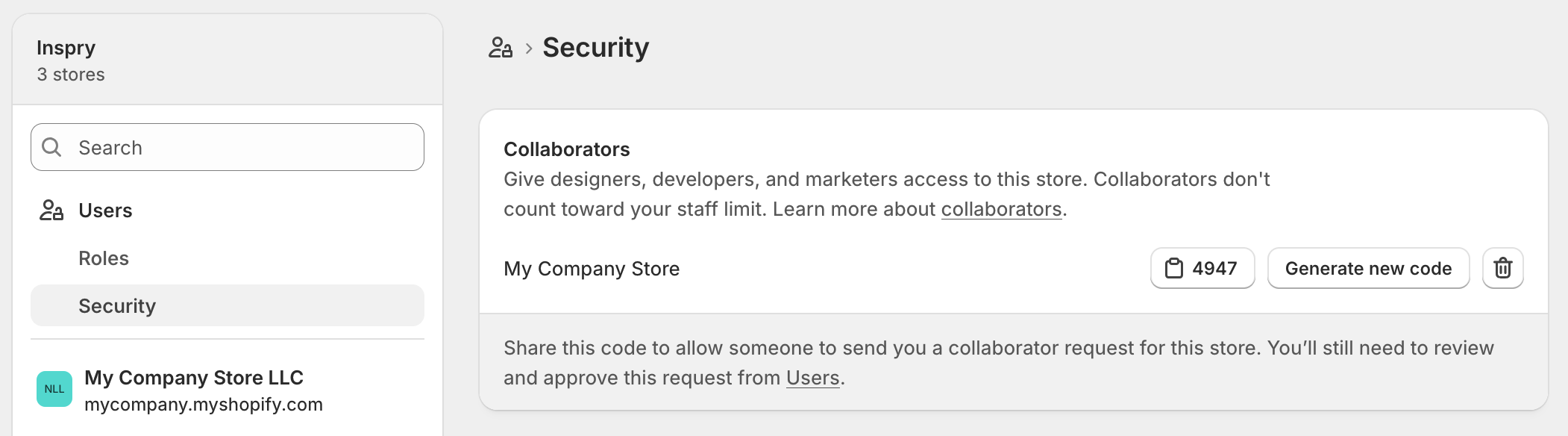
If you are working with a Shopify developer, agency, app partner, or consultant, they may ask you for your Shopify collaborator request code before they can request access to your store.
This code is part of Shopify’s collaborator access system, which allows approved Shopify Partners to request access to your store without being added as a regular staff member. It is a safer and cleaner way to give temporary or project-specific access to someone helping with your Shopify site.
In this guide, we will explain where to find your Shopify collaborator request code, what the code does, what it does not do, and how to manage collaborator access securely.
What Is a Shopify Collaborator Request Code?
A Shopify collaborator request code is a short code that allows a Shopify Partner to submit a collaborator access request to your store.
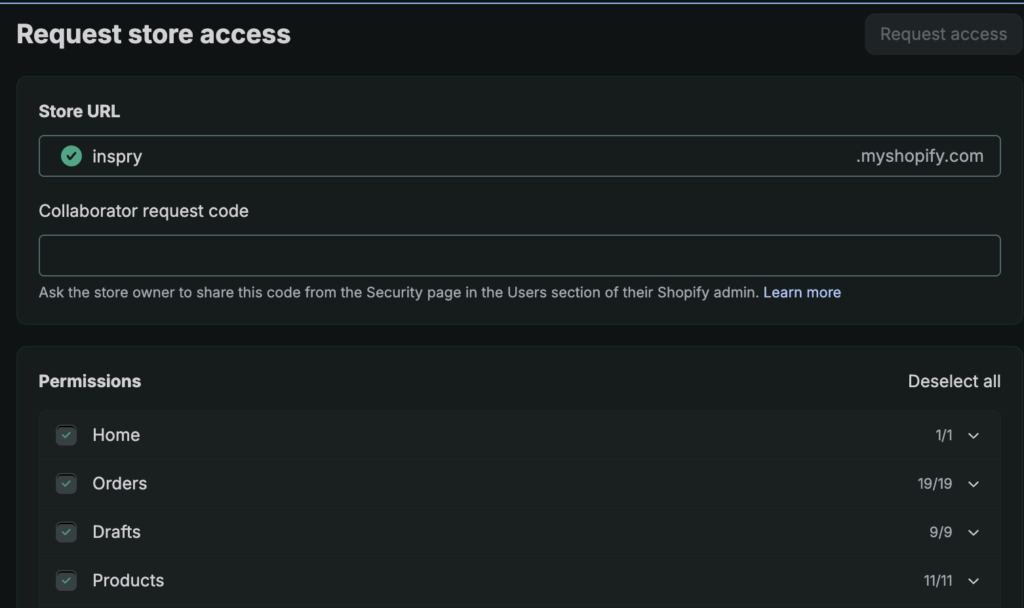
It is important to understand that this code does not automatically give someone access to your Shopify admin. It only allows them to send a request. You still need to review and approve the request before they can access your store.
Shopify describes collaborator accounts as accounts used by Shopify Partners to access merchant stores through their own Partner Dashboard. These accounts do not count toward your store’s staff limit, and the store owner can control which permissions are granted.
Where to Find Your Shopify Collaborator Request Code
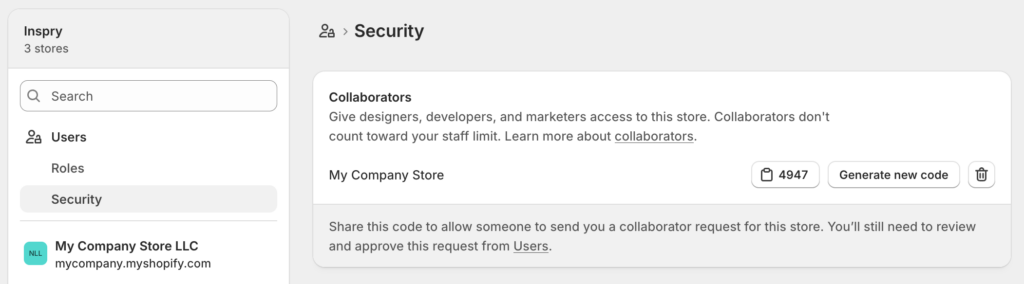
To find your Shopify collaborator request code:
- Log in to your Shopify admin.
- Go to Settings.
- Click Users and permissions.
- Scroll down to the Collaborators section.
- Look for the collaborator request code.
- Copy the code and send it to the agency, developer, or Shopify Partner who needs to request access.
If your store is set to require a collaborator request code, the Partner must enter that code when submitting their access request through their Shopify Partner Dashboard.
What Happens After You Share the Code?
After you share the code, the developer or agency can submit a collaborator request. From there, Shopify will notify you by email and through your Shopify admin.
You can then review the request, check the permissions being requested, and either approve or reject it. Shopify allows you to adjust permissions before approving the request, so you do not need to grant full access unless it is truly necessary.
For example, a developer working on theme updates may need access to themes, products, navigation, and apps, but they may not need access to billing, payouts, or sensitive customer data.
Can Someone Access My Store With Just the Code?
No. The collaborator request code by itself does not provide access to your Shopify store.
The code only allows a Shopify Partner to send a request. You still control whether that request is approved and what permissions are granted. This is one of the reasons collaborator access is usually better than sending someone your own Shopify login.
How to Enable or Disable the Collaborator Request Code
Shopify lets store owners control whether anyone can send a collaborator request or whether a code is required.
To review or change this setting:
- Go to your Shopify admin.
- Click Settings.
- Click Users and permissions.
- Scroll to Collaborators.
- Choose whether collaborator requests require a code.
For better security, we generally recommend requiring a collaborator request code. This helps prevent random or unwanted collaborator requests from people you do not know.
Can You Change the Shopify Collaborator Request Code?
You cannot manually choose a custom code, but you can generate a new one.
If you believe the code was shared with the wrong person, or you simply want to refresh it after a project is complete, you can generate a new collaborator request code in the Collaborators section of Users and permissions.
Once a new code is generated, the old code will no longer work. Shopify’s documentation notes that generating a new access code prevents anyone with an outdated code from requesting access.
Why Use Collaborator Access Instead of a Staff Account?
In most cases, collaborator access is the better option when working with a Shopify agency or developer.
A collaborator account allows a Shopify Partner to access your store through their own Shopify Partner account. It also does not count against your store’s staff account limit.
This is especially helpful when you are working with an outside agency, since you can grant only the permissions needed for the project and remove access when the work is complete.
Regular staff accounts may still make sense for internal team members, employees, or long-term operational users. But for outside technical partners, collaborator access is usually the cleaner and more secure approach.
What Permissions Should You Grant?
The right permissions depend on what the developer or agency is doing.
For example:
If they are updating your theme, they may need access to themes, files, navigation, products, and apps.
If they are configuring shipping, they may need access to products and store settings.
If they are working on analytics, tracking, or conversion setup, they may need access to reports, customer events, apps, or marketing-related settings.
If they are troubleshooting checkout or payments, they may need broader access, but you should still review the request carefully.
Shopify allows store owners to create roles and assign permissions based on what the collaborator needs. Shopify also recommends carefully considering which permissions a collaborator needs before granting access.
How to Approve a Shopify Collaborator Request
Once your developer or agency submits the request, you should receive a notification from Shopify.
To review it:
- Log in to Shopify.
- Go to Settings.
- Click Users and permissions.
- Look for pending collaborator requests.
- Review the requested permissions.
- Adjust the permissions if needed.
- Approve or reject the request.
After approval, the collaborator can access your store through their Shopify Partner Dashboard.
How to Remove Collaborator Access Later
When the work is complete, it is a good idea to review and remove any access that is no longer needed.
To remove a collaborator:
- Go to Settings.
- Click Users and permissions.
- Find the collaborator account.
- Open the account.
- Remove access.
Shopify also notes that collaborator access can expire automatically if the collaborator has not logged into the store within 90 days. Even with automatic expiration, we recommend manually reviewing access after major projects, launches, or agency transitions.
Best Practices Before Sharing Your Collaborator Code
- Before sharing your Shopify collaborator request code, keep these best practices in mind:
- Only share the code with a developer, agency, or Shopify Partner you trust.
- Do not send your personal Shopify login credentials.
- Review the requested permissions before approving access.
- Avoid granting full access unless it is truly necessary.
- Remove access once the work is complete.
- Generate a new code if the current one was shared too broadly.
- If you are unsure which permissions are needed, ask the developer or agency to explain why they need each requested permission.
Need Help With Your Shopify Store?
Inspry works with Shopify and Shopify Plus clients on website development, technical troubleshooting, performance improvements, integrations, and ongoing support.
If you need help granting Shopify collaborator access, reviewing your current setup, or improving your Shopify store, our team can help you through the process safely and efficiently, contact us today.
Need help with your Shopify store?
Inspry is a Shopify agency handling development, maintenance, and audits for stores of all sizes. If a collaborator request is the start of a bigger project, we can help.

Matt Schwartz is an accomplished entrepreneur and technology expert based in Atlanta, Georgia. He is the founder and CEO of Inspry, a WordPress and WooCommerce web development and maintenance web agency that has been providing cutting-edge technology solutions to clients since 2011. With over a decade of experience in the industry, Matt has become a respected figure in the web development community and has helped numerous businesses achieve their digital goals.